
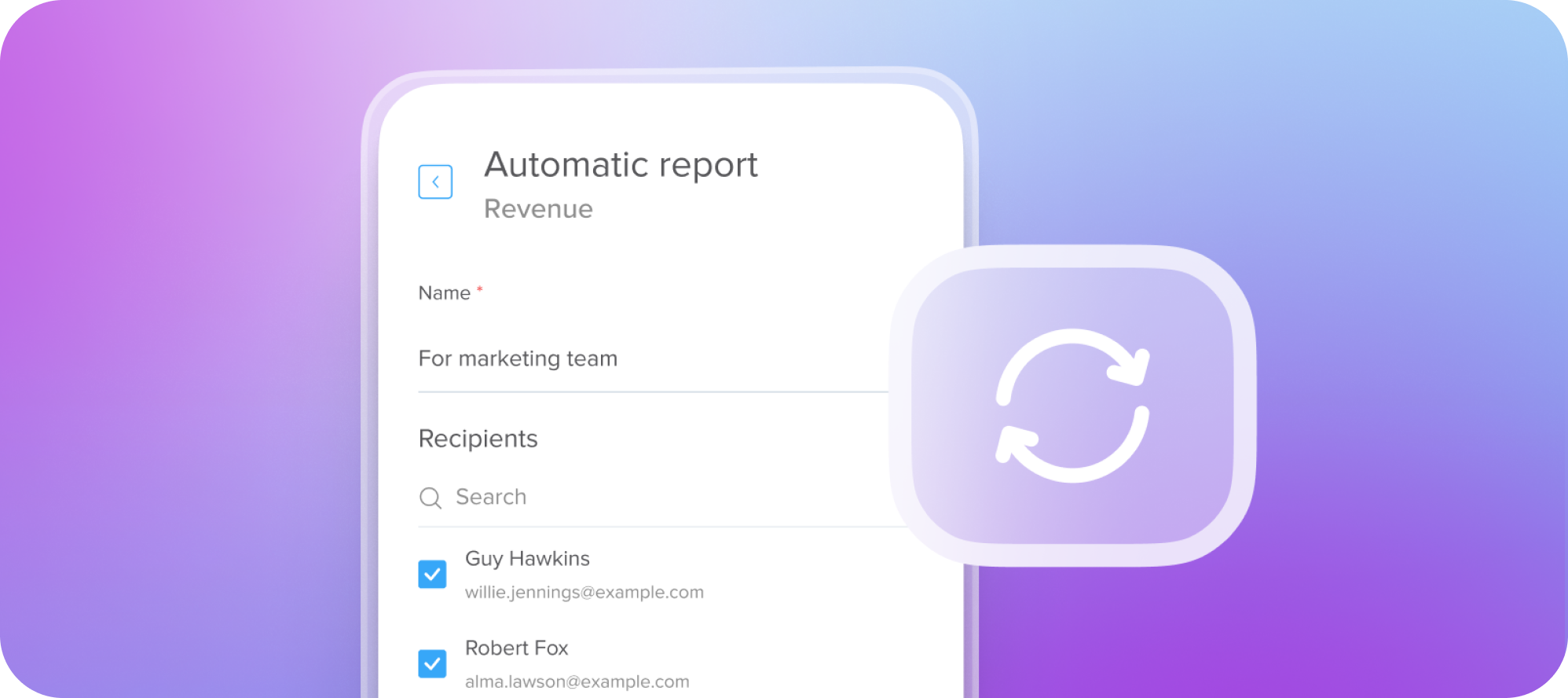
Platinumlist has rolled out a game-changing feature for event organizers: Automatic Reports. This new addition aims to make monitoring event performance easier than ever by delivering ticket sales updates straight to your inbox. Whether you prefer daily, weekly, or monthly insights, the Automatic Reports feature ensures you stay on top of your event’s data to make smarter, more informed decisions.
Why Automatic Reports Matter
Managing an event involves juggling multiple tasks, and keeping track of ticket sales and other metrics can often feel overwhelming. The Automatic Reports feature eliminates this hassle by automating the process, allowing you to focus on strategizing ways to boost your ticket sales. With these reports, you gain a clear understanding of your event’s performance at a glance, enabling you to adapt quickly and efficiently.
Reports You Can Automate
Under the Reports tab in your organizer panel, you can automate the following types of reports:
- Ticket Sales Report: Monitor your overall ticket sales progress.
- Season Sales Report: Gain insights into seasonal trends.
- Upsells Sales Report: Track additional purchases made alongside ticket sales.
- Zones Sales Report: Analyze the performance of specific seating or event zones.
- Traffic Report: Understand visitor patterns and activity.
- Occupancy Report: See how much of your venue is being utilized.
- Revenue Report: Keep tabs on your financial success.
Platinumlist plans to expand the feature to include even more types of reports in the future.

How to Set Up Automatic Reports
Creating an Automatic Report is simple and can be done in just a few steps:
- Go to the Reports Tab: In your event’s organizer panel, navigate to the Reports tab and select the type of report you wish to automate.
- Click the Automatic Report Button: You’ll find this new button next to the download icon.
- Configure the Report: In the setup window, fill in the required details:
- Report Name: Assign a name to easily identify your report.
- Frequency: Choose how often you want the report—daily, weekly, or monthly. For monthly reports, specify the desired date.
- Columns: Select the columns you want included, arrange their order, and confirm visibility.
- Recipients: Add team members from your organizer’s member list.
Note: Be mindful when selecting columns and recipients to maintain data security.
- Save Your Report: Click “Save” to activate the automation.
Managing Your Automatic Reports
Once created, all Automatic Reports for an event are listed under the Automatic Reports tab in the Reports section. Here, you can:
- View all configured reports.
- Edit reports that you’ve created.
- Delete reports you no longer need.
Each report also shows its author, making it easy to reach out if adjustments are required.
Receiving and Accessing Your Reports
Automatic Reports are generated overnight and include all data from the previous day. Recipients will receive a notification email containing:
- A direct download link.
- A link to the Downloads Center for further access.
Reports are stored for three days, so make sure to download them promptly to avoid losing access.
Managing Reports in the Downloads Center
To further streamline report management, Platinumlist’s Downloads Center allows you to:
- View all reports where you are listed as a recipient.
- Check a report’s status, generation time, and expiration date.
- Unsubscribe from reports you no longer wish to receive by clicking the unsubscribe icon.
Stay Ahead with Automatic Reports
With the Automatic Reports feature, Platinumlist is empowering event organizers to make data-driven decisions without the added complexity. By delivering crucial metrics directly to your inbox, this feature ensures that you’re always prepared to optimize your event’s performance. Explore the Reports tab today and see how this innovative tool can elevate your event management experience.